download
Hold the hotkey, speak, release: your words land as text in the app you’re typing in
 01
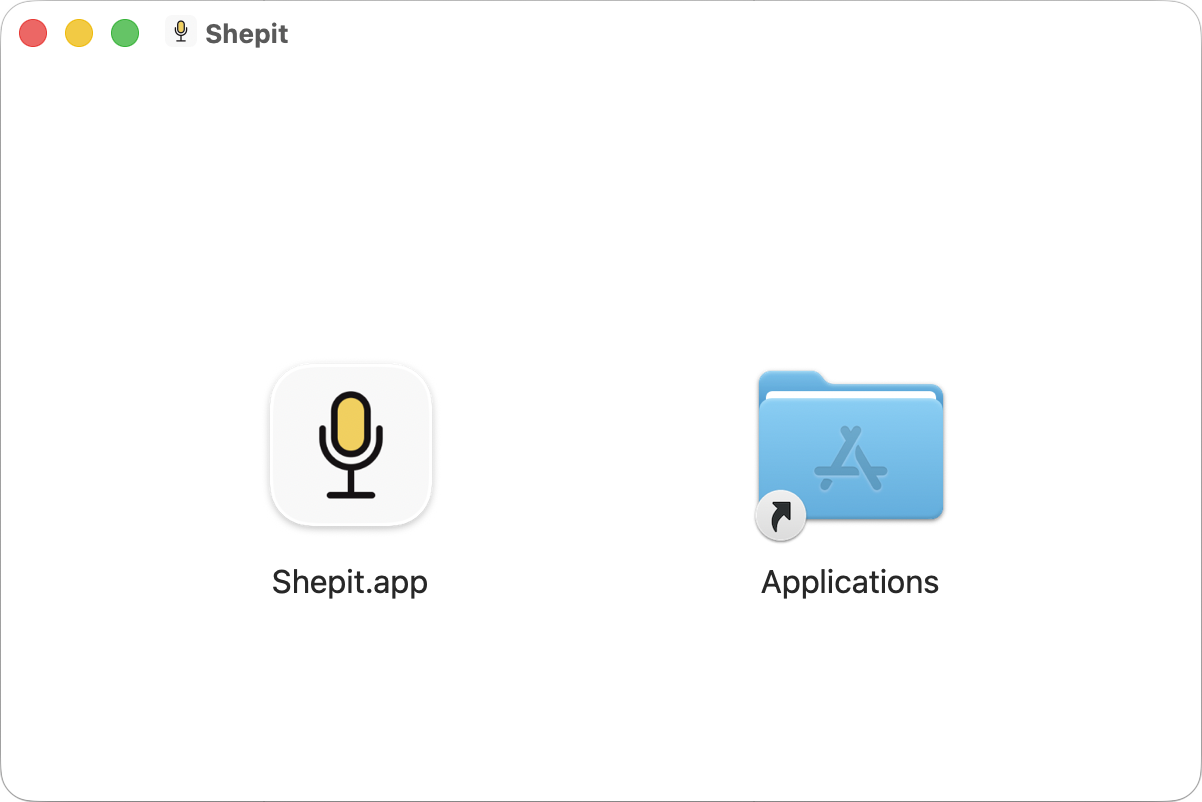
01The .dmg opens with the Shepit icon on one side and Applications on the other. Drag the icon across. That’s the install.
 02
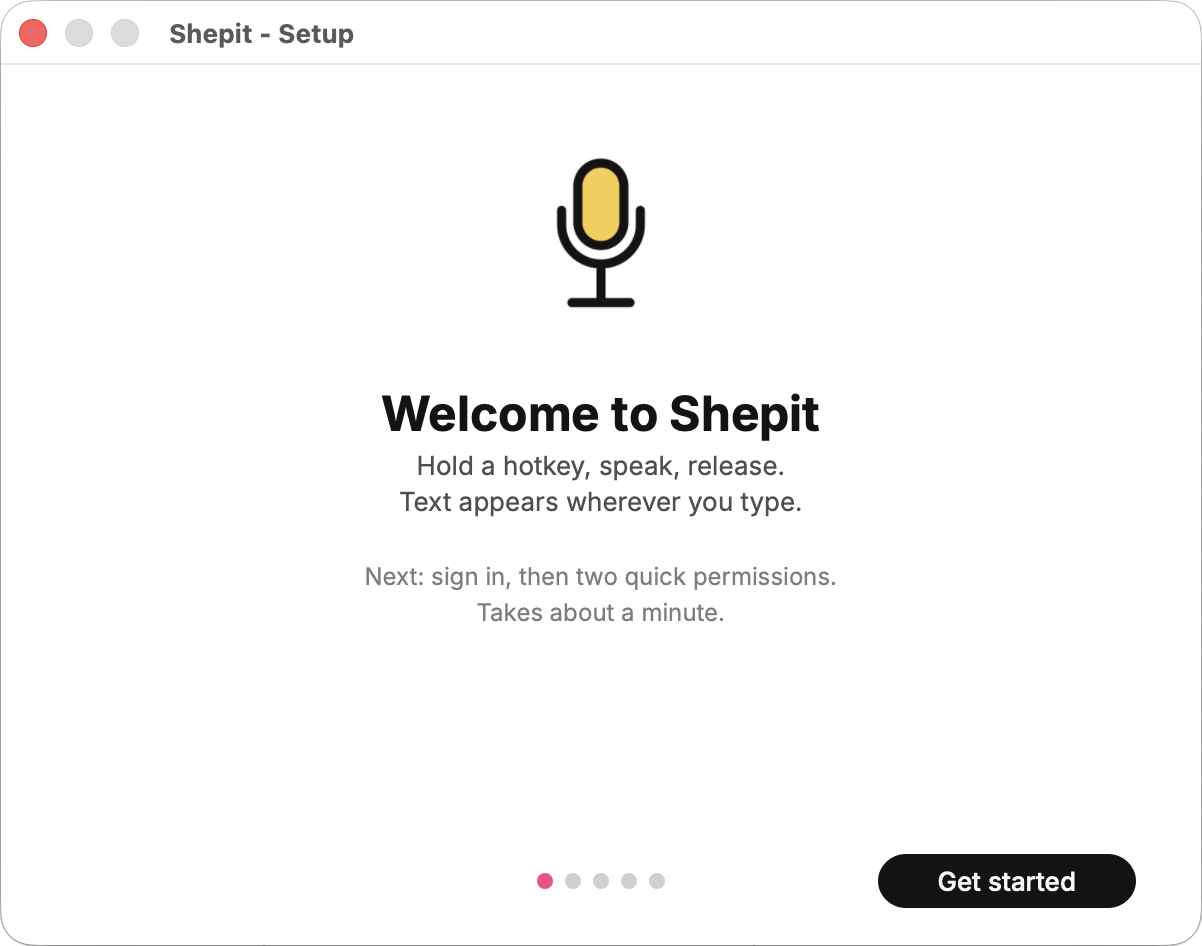
02Open Shepit from Applications and the Setup Wizard takes it from here: sign in, then switch on Microphone and Accessibility. Both are required - mic so Shepit can hear you, Accessibility so it can type the words into whatever app you’re in. It relaunches once to finish the Accessibility grant, then hands you a quick test. Under a minute.
MicrophoneAccessibility